
However many cloud phones you run, it’s still just one sentence
Connect TakeFlow to WorkBuddy, Codex, Cursor, and other desktop clients — the AI checks seats, powers devices on and off, publishes posts, edits profiles, and explains what went wrong
WorkBuddy · Codex · Claude Desktop · Cursor · DeepSeek Harness · Node ≥ 18 · v2.4.0 · data security
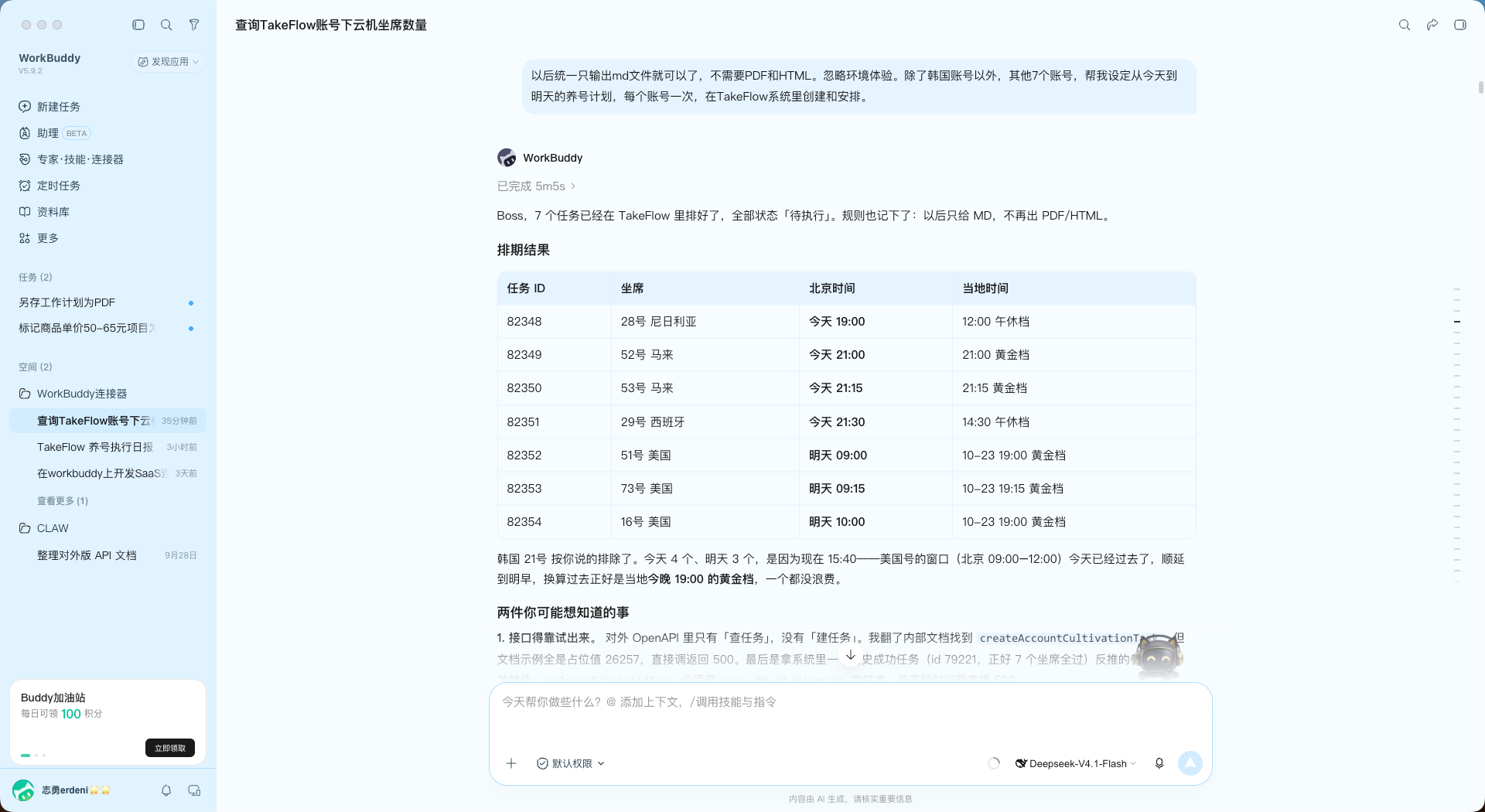
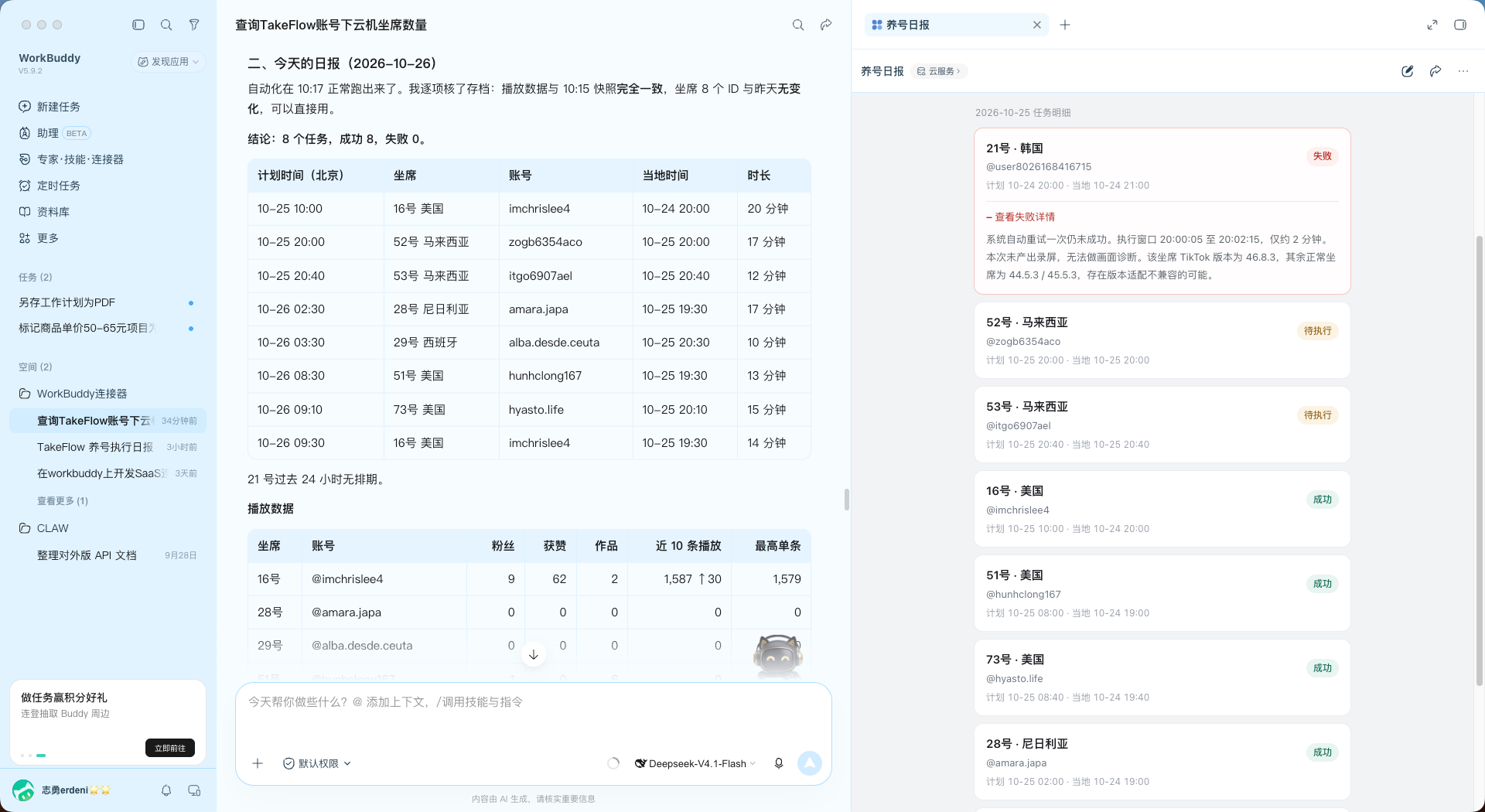
Screenshot for illustration only
Five things you used to do every morning
Now you have a better assistant
| The five things | Before | Now |
|---|---|---|
| See who’s offline or about to expire | Open each tab one by one, retype everything into Excel, and still miss something | One sentence, one table, with the outliers flagged |
| Power on and grab the live screen URLs | Find the seat → power on → wait for the screen to attach → copy → paste | “Power on 16 and 73, and send me the live screen URLs” |
| Send the same creatives to many devices | Upload eight times, retype the caption eight times, add music eight times | Publish by folder in one pass, with scheduling, random order, and background music |
| Bulk-change avatars and nicknames | Change them one device at a time, then refresh to confirm it took | Edit many profiles in one call |
| Find out why a task failed | Download the recording, scrub the timeline, guess from experience, then try again | Frame extraction checked against the rules library—verdict plus what to avoid |
MCP can do a lot more than this
Every one of them starts with a single sentence
Every account at a glance
Nicknames, followers, groups, expiry dates, and online status, all in one table
Power on without waiting
Batch power-on; the AI waits until the screens attach, then hands you the live screen URLs
Warming tasks on the fly
Pick devices by group, run now or on a schedule, and set keywords and comments in one go
One creative, many devices
Upload once to cloud storage, publish by folder, with scheduling, random order, and background music
Bulk profile edits
Say what to change; fields you don’t mention won’t be cleared
No more guessing why
Drop in a recording or a screenshot; the AI checks hundreds of rules, then gives a verdict and tells you how to avoid the issue
Renewals and orders
Quotes the plan and the amount including fees, places the order only after you confirm, and returns a payment link
Performance on demand
Account overview plus the last 10 posts; judge results 24–48 hours after publishing
Bulk ban checks
Check whether multiple TikTok accounts still exist, with nickname, followers, and post count, in four result types
Every step of cloud phone operations, end to end
Seat and post data are illustrative. Success is judged by subtask status, not the parent task.
Data health check
You say
It did
You get
Final report
23 devices · 2 offline · yesterday’s warming: 8 succeeded / 0 failed
Do it yourself, or let the AI do it
The same connector works in WorkBuddy, Codex, Claude Desktop, and Cursor
Give TakeFlow a pair of hands
You state the goal
“Post the uploaded video to seat 16.” One sentence is all it takes
The AI breaks it into steps
Check the seat, upload the creative, publish by folder—and flag the risks up front
It runs on your computer
The connector runs on your computer and talks to the platform directly
It reports back
How many succeeded, how many failed, and why—with the cause worked out for you
Three steps to connect
Download the package and extract it to a fixed folder (for example ~/TakeFlow-MCP, not Downloads)
Double-click the installer: press Enter for the default API address → phone number → password (not echoed) → answer y or n for WorkBuddy, Codex, Claude Desktop, Cursor, and DeepSeek Harness
Quit the client completely, reopen it, and ask “Show me my TakeFlow seats and highlight the ones expiring soon”
Troubleshooting
Confirm your version first (v2.4.0) and include it when contacting support — it speeds up diagnosis